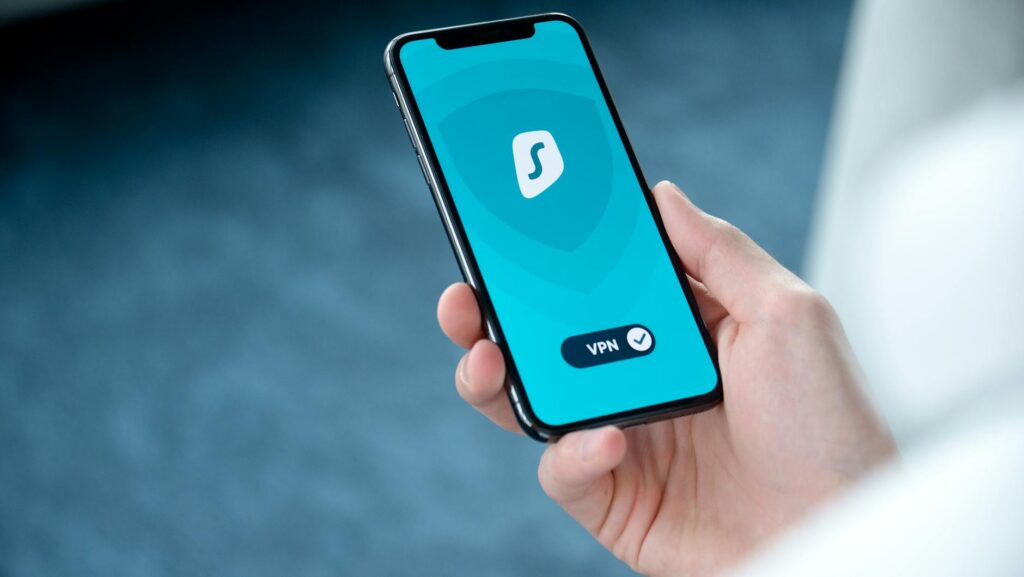
Public Wi-Fi protection starts before you tap Connect, not after. If you use airport, cafe, hotel, or train-station Wi-Fi in 2026, the safest move is to treat every open network as untrusted, verify the hotspot name, use a VPN, and avoid sensitive logins unless the connection is fully encrypted. As of April 2026, the fundamental principles of securing your data on public Wi-Fi remain critical, with evolving threats necessitating consistent vigilance.
Public Wi-Fi protection means reducing the chance that someone on the same network can read, intercept, or redirect your traffic. The best defense is a layered setup: verify the network, use a trusted VPN, turn off auto-join, keep devices updated, and only sign into sensitive accounts on HTTPS sites or a mobile hotspot. In the 15 years covering online privacy, the biggest mistake observed is simple: people trust the Wi-Fi because the place feels legitimate. That cafe logo on the router doesn’t mean the network is safe.
Latest Update (April 2026)
Recent developments in Wi-Fi security continue to underscore the importance of robust protection strategies. For instance, University of California, Riverside computer scientists revealed Wi-Fi security flaws in early 2026, highlighting ongoing vulnerabilities that attackers can exploit. These findings, reported in February 2026, emphasize that even seemingly secure Wi-Fi protocols can have exploitable weaknesses. Furthermore, a 2025 trend report from Panda Security noted the persistent and evolving nature of threats on public Wi-Fi, urging users to adopt proactive security measures. With the proliferation of connected devices and the increasing reliance on public hotspots for both personal and professional use, staying informed about the latest security research and adopting best practices is more important than ever.
What’s Public Wi-Fi Protection?
Public Wi-Fi protection is the set of habits and tools that keep your data private and secure on shared, often untrusted, networks. It encompasses network verification, encryption protocols, device hardening, and informed browsing choices, all designed to prevent malicious actors on the same hotspot from easily spying on your online activity.
Think of it as a multi-layered defense system: the network itself, your device’s security, your browser’s configuration, and your personal behavior. If one layer is compromised, the others are still in place to reduce the overall risk to your sensitive information.
What does it protect against?
Effective public Wi-Fi protection safeguards against a range of common and sophisticated cyber threats. These include:
- Man-in-the-Middle (MitM) Attacks: Where an attacker secretly relays and possibly alters the communication between two parties who believe they are directly communicating with each other.
- Packet Sniffing: The interception and logging of internet traffic passing over a network.
- Rogue Access Points (Evil Twins): Malicious actors setting up fake Wi-Fi hotspots with legitimate-sounding names to trick users into connecting and then harvesting their data. According to CISA, public Wi-Fi networks can expose users to interception and other attacks if traffic isn’t protected.
- Phishing Attacks: Tricking users into revealing sensitive information, often through fake login pages that mimic legitimate websites.
- Session Hijacking: Stealing a user’s session cookie to gain unauthorized access to their online accounts.
These threats are particularly relevant because public networks are typically shared by numerous devices, many of which belong to individuals you don’t know and whose security posture is unknown.
Why is Public Wi-Fi Risky?
Public Wi-Fi presents inherent risks primarily because you have little to no control over the network infrastructure, its security configurations, or the other users connected to it. Even networks that appear legitimate and secure can be compromised. Attackers frequently set up fake access points, often named to closely resemble official networks (e.g., “Airport_Free_WiFi” vs. “Airport-Free-WiFi”), to intercept or redirect user traffic. This tactic is not theoretical; it’s a common and repeatable method used by cybercriminals.
What Can Go Wrong on Open Networks?
- Data Sniffing: Unencrypted traffic can be easily captured and analyzed by anyone on the same network.
- Man-in-the-Middle Attacks: An attacker intercepts communication between your device and the website or service you are trying to access.
- Evil Twin Hotspots: Attackers create fake Wi-Fi networks that mimic legitimate ones, luring unsuspecting users to connect.
- Session Theft: If protections are weak, attackers can steal login cookies, granting them access to your accounts without needing your password.
- Phishing Redirects: Users can be directed to fraudulent websites designed to steal credentials or personal information.
It’s crucial to understand that while HTTPS provides encryption between your browser and the website, it doesn’t offer complete protection. A secure website connection cannot prevent you from visiting a phishing page or downloading malicious software if you are tricked into doing so.
How Do You Protect Yourself in Each Step of the Timeline?
The most effective approach to public Wi-Fi security follows a clear timeline: prepare before you leave, secure your connection upon arrival, minimize your exposure while online, and disconnect cleanly afterward. This sequence simplifies security management compared to a lengthy, overwhelming checklist.
Before You Connect
- Turn Off Automatic Wi-Fi Joining: Configure your smartphone, tablet, and laptop to prevent automatic connections to known or open Wi-Fi networks.
- Install System and Browser Updates: Ensure your operating system, web browsers, and all applications are updated with the latest security patches before you travel or connect to public Wi-Fi. This is a fundamental step recommended by security bodies like CISA.
- Enable Your Firewall: Make sure the built-in firewall on your devices is active.
- Install a Trusted VPN: Subscribe to and install a reputable Virtual Private Network (VPN) service from a well-known provider. Options like NordVPN, Proton VPN, ExpressVPN, or Mullvad are frequently cited in independent reviews for their security and privacy features. Download the VPN application and essential configuration files beforehand.
- Download Necessary Content: Pre-download any documents, files, or applications you anticipate needing. This reduces the necessity of accessing sensitive cloud storage or downloading large files while on an untrusted network.
While You Connect
- Verify Network Name: Ask venue staff for the exact network name and password. If possible, confirm it with signage or an official receipt.
- Activate VPN First: Always enable your VPN connection before opening applications that handle sensitive data, such as email clients, banking apps, or cloud storage services.
- Check for HTTPS: Ensure that websites you visit use HTTPS (look for the padlock icon in the address bar).
- Use Multifactor Authentication (MFA): Enable MFA for all critical accounts (email, banking, social media). This adds an essential layer of security, making it much harder for attackers to compromise your accounts even if they steal your password.
While You Browse
- Limit Sensitive Transactions: Avoid accessing banking portals, tax filing services, payroll systems, or health record websites unless absolutely necessary. If you must, ensure your VPN is active and the site uses HTTPS.
- Utilize a Password Manager: Employ a reputable password manager to generate and store strong, unique passwords. This prevents you from manually typing credentials into potentially fake login pages.
- Be Wary of Software Prompts: Do not install any software or browser extensions prompted by a captive portal login page or any other pop-up on the network.
- Disable Unnecessary Syncing: Avoid syncing large private files or performing extensive cloud backups while on public Wi-Fi.
After You Disconnect
- Forget the Network: Remove the public Wi-Fi network from your device’s saved network list. This prevents your device from automatically reconnecting in the future.
- Close Sensitive Tabs: Log out of and close browser tabs associated with sensitive accounts.
- Review Account Alerts: Check your email and account notifications for any unusual sign-in activity or security alerts.
VPN or Mobile Hotspot: Which is Better?
Choosing between a VPN and a mobile hotspot depends on your specific needs and the sensitivity of the task. For general browsing and moderate privacy needs on public Wi-Fi, a VPN offers a strong balance of security and convenience. For highly sensitive tasks, a mobile hotspot is often the more secure option as it bypasses the public network entirely.
| Method | Protection Level | Best Use Case | Main Drawback |
|---|---|---|---|
| VPN | High | Frequent travelers, remote workers, general browsing | Requires trust in the VPN provider; potential for reduced speeds |
| HTTPS Only | Medium | General browsing on trusted sites | Does not hide metadata or network connection details |
| Mobile Hotspot | High | Banking, critical work tasks, accessing private data | Consumes cellular data; potential for high costs; limited availability |
| Public Wi-Fi without protection | Low | Very low-risk activities (e.g., checking public transport schedules) | Highest exposure to various threats |
The optimal choice hinges on the task at hand. Checking a public transit schedule requires less stringent security than filing your taxes. As CNET reported in November 2025, the question of whether a VPN makes you truly anonymous on public Wi-Fi is complex, and while it significantly enhances privacy, it’s not a foolproof solution on its own. A mobile hotspot, by contrast, isolates your connection from the public network entirely, offering a more direct and secure link through your cellular provider.
What is not recommended includes using free VPN apps with unclear ownership or data policies, browsers known to inject scripts or track users aggressively, or unverified hotspot extenders. These tools can introduce more risks than they mitigate.
What Should You Never Do on Public Wi-Fi?
Never assume that a login page, network name, or any prompt appearing after connecting is legitimate simply because it looks polished or professional. Public Wi-Fi attacks often rely on psychological manipulation, creating a sense of urgency or trust rather than complex technical exploits.
High-Risk Mistakes to Avoid
- Typing Passwords into Non-HTTPS Sites: Always ensure a site uses HTTPS before entering any login credentials.
- Ignoring Certificate Warnings: Browser warnings about invalid security certificates are critical red flags. Do not proceed past them.
- Keeping File Sharing Enabled: Ensure that network file sharing is turned off for your current network connection.
- Connecting Without a VPN: For anything beyond the most basic, non-sensitive browsing, connecting to public Wi-Fi without a VPN significantly increases your risk.
- Using Outdated Software: Running unpatched operating systems or applications leaves you vulnerable to known exploits. LinuxInsider recently highlighted the importance of locking down Linux laptops on public Wi-Fi, a principle that applies universally to all operating systems.
- Clicking Suspicious Links: Be extremely cautious of links in emails or on websites, especially when on public Wi-Fi, as they can lead to phishing sites or malware downloads.
Frequently Asked Questions
Is public Wi-Fi ever truly safe?
Public Wi-Fi is rarely, if ever, truly safe on its own. While some networks may implement basic security measures, the inherent risks associated with shared, untrusted environments mean you should always treat them with caution. Using a VPN and ensuring all connections are encrypted (HTTPS) significantly enhances safety, but the network itself remains a potential point of vulnerability.
How can I tell if a public Wi-Fi network is a scam?
Scam networks, often called “evil twins,” typically mimic legitimate network names. Always verify the official network name with venue staff or signage. Be suspicious of networks that require no password but then present a login page, or networks with slightly misspelled or unusual names. If a network appears suddenly or offers unusually high speeds, it could be a trap.
Does a VPN hide my activity from my Internet Service Provider (ISP)?
If you are using your mobile hotspot, your cellular provider (your mobile ISP) can still see your traffic unless you use a VPN. When connected to public Wi-Fi, a VPN encrypts your traffic and routes it through its own servers, hiding your activity from the public Wi-Fi provider and anyone monitoring that network. However, your VPN provider itself can see your traffic, which is why choosing a reputable provider with a strict no-logs policy is paramount.
What are the risks of using a free VPN on public Wi-Fi?
Free VPNs often come with significant risks. Many free services may log your activity, sell your data to third parties, inject ads into your browsing, or even contain malware. Their security protocols might also be weaker than those of paid services. According to BGR.com’s review of privacy gadgets in April 2026, users are increasingly seeking reliable solutions, and free VPNs rarely meet the mark for genuine security.
Should I disable Wi-Fi when not in use on public networks?
Yes, it’s a good practice to disable Wi-Fi on your device when you are not actively using it, especially when connected to public networks. This prevents your device from automatically scanning for or connecting to potentially malicious networks in the background. Turning off auto-join features is also essential.
Conclusion
Navigating public Wi-Fi in 2026 requires a proactive and layered security approach. By understanding the risks, preparing your devices, verifying network connections, utilizing tools like VPNs and HTTPS, and practicing safe browsing habits, you can significantly reduce your exposure to cyber threats. Remember that vigilance is key, and treating every public Wi-Fi connection as potentially untrusted is the most effective strategy for protecting your digital life.